
How to check CPU, memory, and disk usage on your Mac
The fans pick up, a window beachballs, or a download crawls, and you want to know which app is responsible. macOS already has Activity Monitor for that. If you would rather see the same picture without leaving your work, NotchDude’s System widget puts it in the notch.
Check usage with Activity Monitor
Activity Monitor is the built-in app for this. It lists every process and lets you quit one that has stopped responding.
- Press ⌘Space, type Activity Monitor, and press Return. You can also open it from Applications › Utilities.
- Use the tabs along the top: CPU, Memory, Energy, Disk, and Network.
- Click a column heading to sort. On CPU, sort by % CPU so the busiest processes rise to the top. On Memory, sort by Memory.
- To stop an app, select it and click the X in the toolbar. Quit asks it to close. Force Quit is for an app that no longer responds. Quit the app you recognise, and leave processes whose names you don’t know.
The Window menu can keep a small CPU graph on screen (CPU Usage or CPU History) if you want a readout while Activity Monitor itself stays in the background. In Terminal, top prints a live list in the same spirit; press Q to leave it.
What the numbers mean
A high percentage is a clue, and a few of the labels are easy to misread.
- CPU over 100%. Each core counts as 100%. On a Mac with several cores, one busy app can show a few hundred percent. That reading means the app is using more than one core, which is what you want from a compile, an export, or a local model.
- Memory Pressure, at the bottom of the Memory tab, matters more than the “memory used” total. Green means macOS still has room. Yellow means it is compressing memory to keep going. Red means it is using the disk as extra memory (swap), and the Mac will feel slow until something quits or you restart.
- Cached files can look like a huge chunk of memory. macOS keeps recently used files there and gives that space back when an app needs it. A full-looking memory graph with green pressure is the Mac doing its job.
- Disk. The Disk tab shows how much each process is reading and writing. For how full the drive is, open the Apple menu › System Settings › General › Storage. Purgeable space is caches and iCloud files macOS can clear on its own. It is available in a pinch, and it is separate from the space your own files permanently occupy.
- Heat. A Mac that has been busy for a while may slow itself down so it stays within a safe temperature. Activity Monitor will not show a temperature in degrees. If one app is pinned at the top of the CPU list the whole time, quitting it is the first thing to try.
See it in the notch
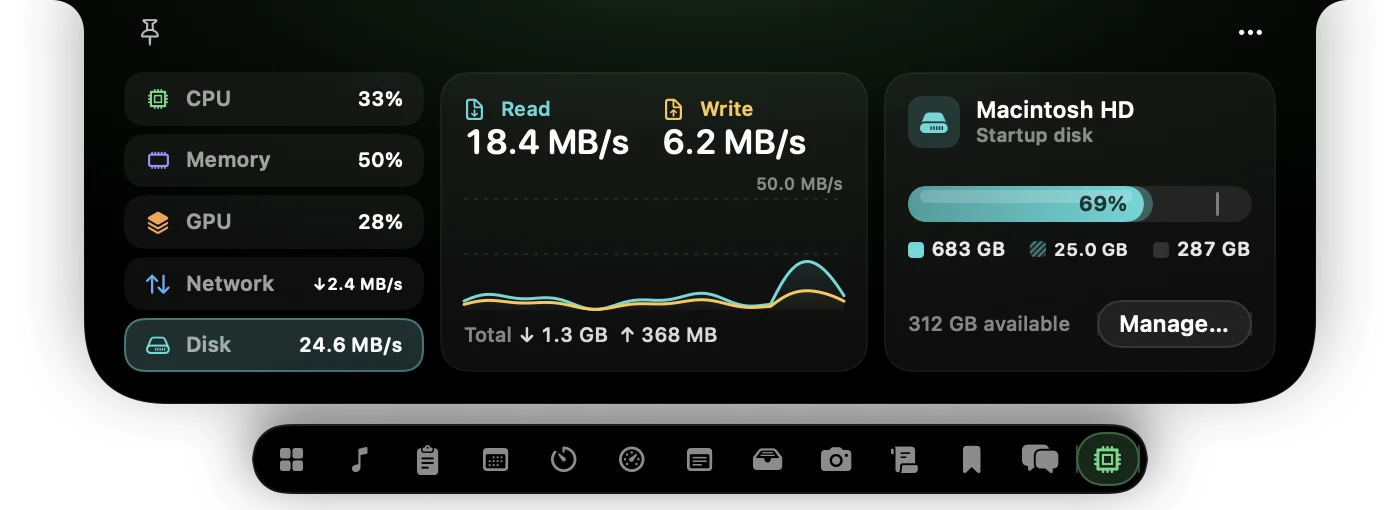
Opening Activity Monitor is the right move when you are hunting a stuck process. For the rest of the day, System in NotchDude shows the same kind of picture from the notch: CPU, Memory, GPU, Network, and Disk, each with a live reading and a graph of the last two minutes. Click one to see more. System is free, and it arrived in NotchDude 1.13.
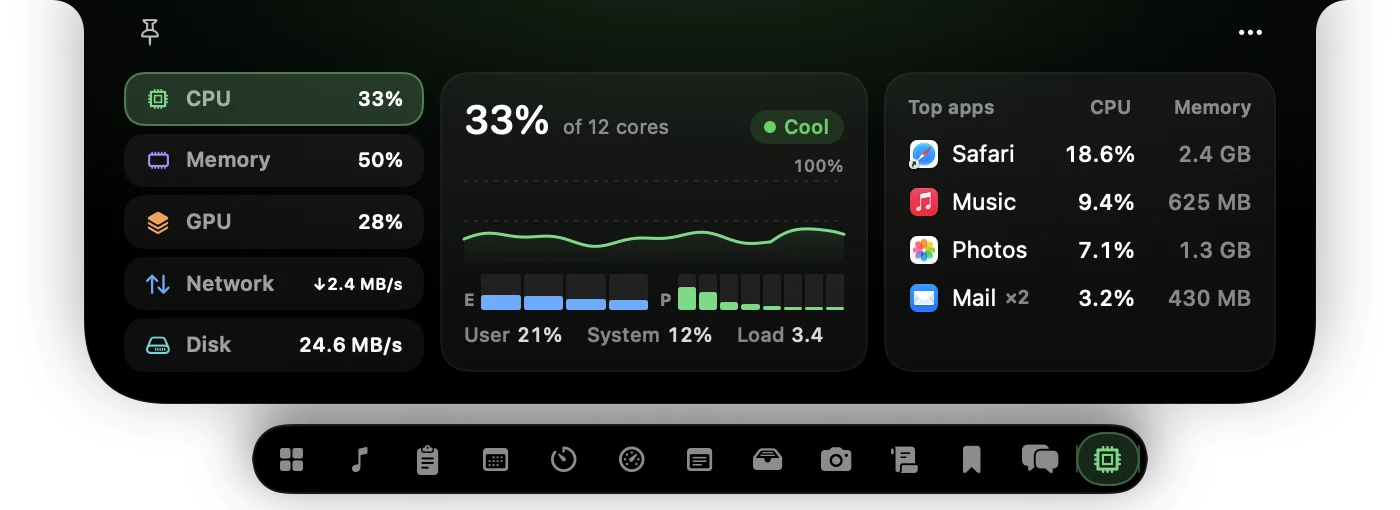
- CPU shows user and system time, the load average, how long the Mac has been running, whether it is warm enough to slow itself down, and a bar for every core. Efficiency cores are marked E and performance cores P.
- Memory uses the same memory-pressure idea as Activity Monitor, then splits what’s in use into apps, wired, compressed, and cached, plus swap.
- GPU names the graphics processor, how many cores it has, how busy it is (drawing and geometry), and the memory it is using.
- Network shows Wi-Fi and Ethernet download and upload speeds, how much has moved since you opened the widget, and the peak.
- Disk shows read and write speeds beside how full the startup disk is. The bar splits used space, purgeable space (drawn striped), and free space, counted the way Finder counts them. A warning appears when space is running low, and Manage… opens Storage settings.
CPU and Memory also list the apps using the most. Helper processes count toward their app, so a browser’s many helpers appear once, as the browser. Hover an app for its thread count. To quit one, hover it and click the cross that replaces its icon, then click again to confirm. If macOS does not let NotchDude read other apps, that list is left out and the rest of the widget still works.
Readings update every second while System is open, and every two seconds on its Home tile. When you are not looking at it, NotchDude does not sample. The heavier readings run off the main thread, and the numbers stay on your Mac. The full behaviour is in the System section of the guide.
CPU and RAM while the notch is closed
You can keep the two numbers you glance at most often on the closed notch, so you notice a spike before the fans do.
- Open Settings › Appearance › Closed notch.
- Choose Right side.
- Choose CPU and RAM.
That pair is the whole Mac, updated every two seconds, and it turns orange once either one passes 90%. A low battery still takes that spot when the battery needs attention. Music, a Focus timer, and other live activities still replace the closed notch while they are happening.
FAQ
Why does Activity Monitor show CPU over 100%?
Each CPU core counts as 100%. A Mac with several cores can show a few hundred percent while it is busy, and that reading is normal.
Is high memory use on a Mac a problem?
Look at Memory Pressure, in Activity Monitor’s Memory tab or in NotchDude’s Memory page. Green means macOS still has room. Yellow means it is compressing memory. Red means it is using the disk as extra memory and the Mac will feel slow.
What is purgeable space?
Caches and iCloud files macOS can clear on its own when it needs room. Finder and the Disk page count it separately from space your files permanently use.
Does the System widget slow the Mac down?
It reads only while you can see it: every second with the widget open, and every two seconds for its Home tile or the closed notch. When none of those is showing, it does not read. The readings stay on your Mac.
Is System free?
Yes. CPU, memory, GPU, network, disk, the app list, and CPU and RAM on the closed notch are free to keep. Your first 48 hours also include every Pro feature, with no card needed.
See what your Mac is doing
System is free to keep. Your first 48 hours include every Pro feature, with no card needed.
Or try Pro free for 48 hours, no card needed · macOS 14+ · Apple silicon